LinkedIn Profile Optimization: What to Fix First, in Order of Effect, with a 90-Minute Checklist
LinkedIn profile optimization in order of effect: first what gets you found, then what turns a visit into a follow. Official numbers and a 90-minute checklist.

LinkedIn profile optimization works best when you follow the order of effect and ignore the order of the screen. First you fix what decides whether people find you, then what decides whether a visitor follows you.
Many guides list 20 tips at the same level, and the numbers in them often carry no year. LinkedIn’s own help pages are more careful, and in places they say the opposite of the popular advice.
I work as a Marketing Engineer: digital since 12, full marketing since 20. For every rule and number about the platform I use what LinkedIn publishes, with the year next to each number. The order, the time estimates and the writing advice are mine, and the guide ends with a checklist of about 90 minutes.
Key Takeaways
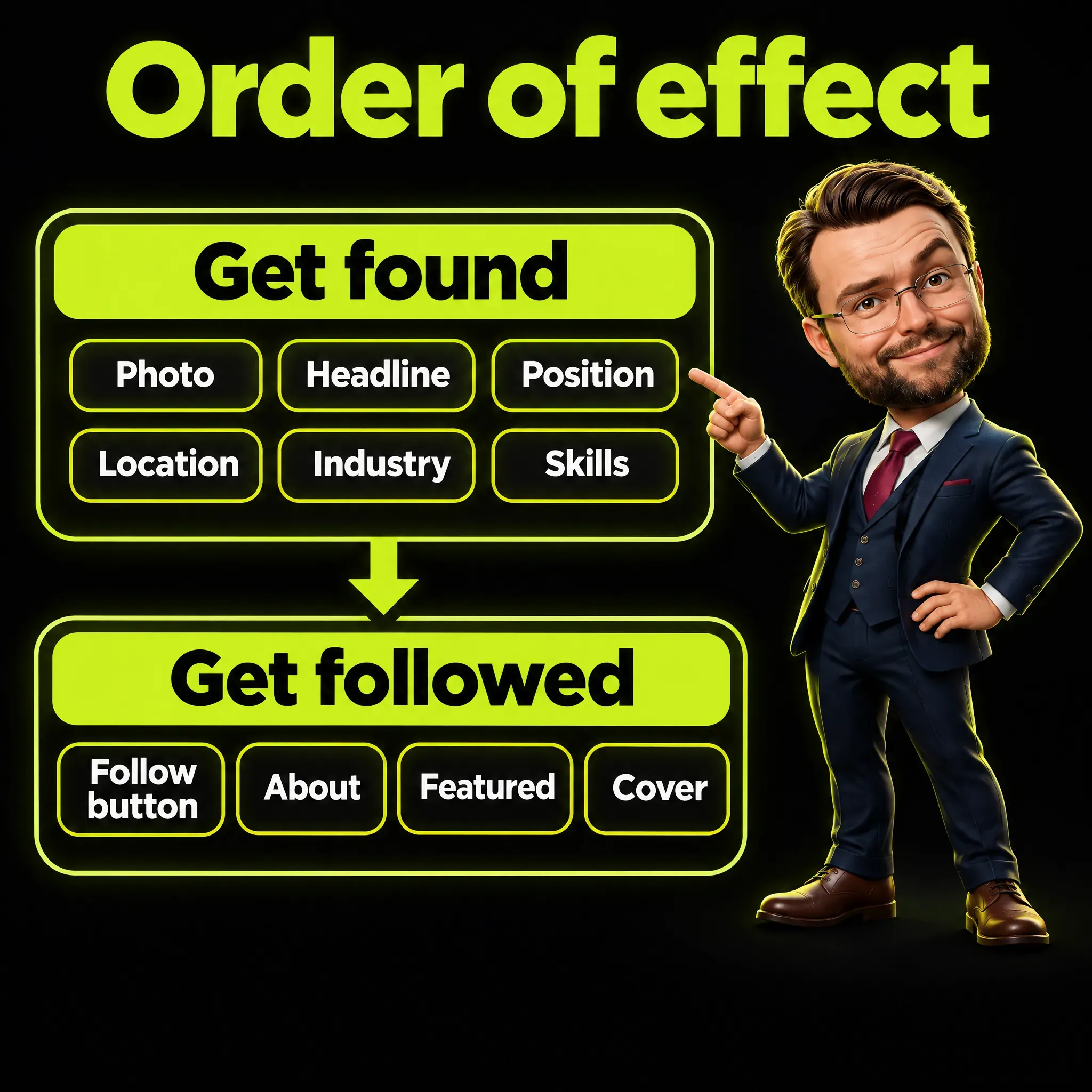
- Optimize in two stages. Photo, job title, current position, skills and location decide whether you are found; the Follow button, the first lines of About and Featured decide whether a visitor stays.
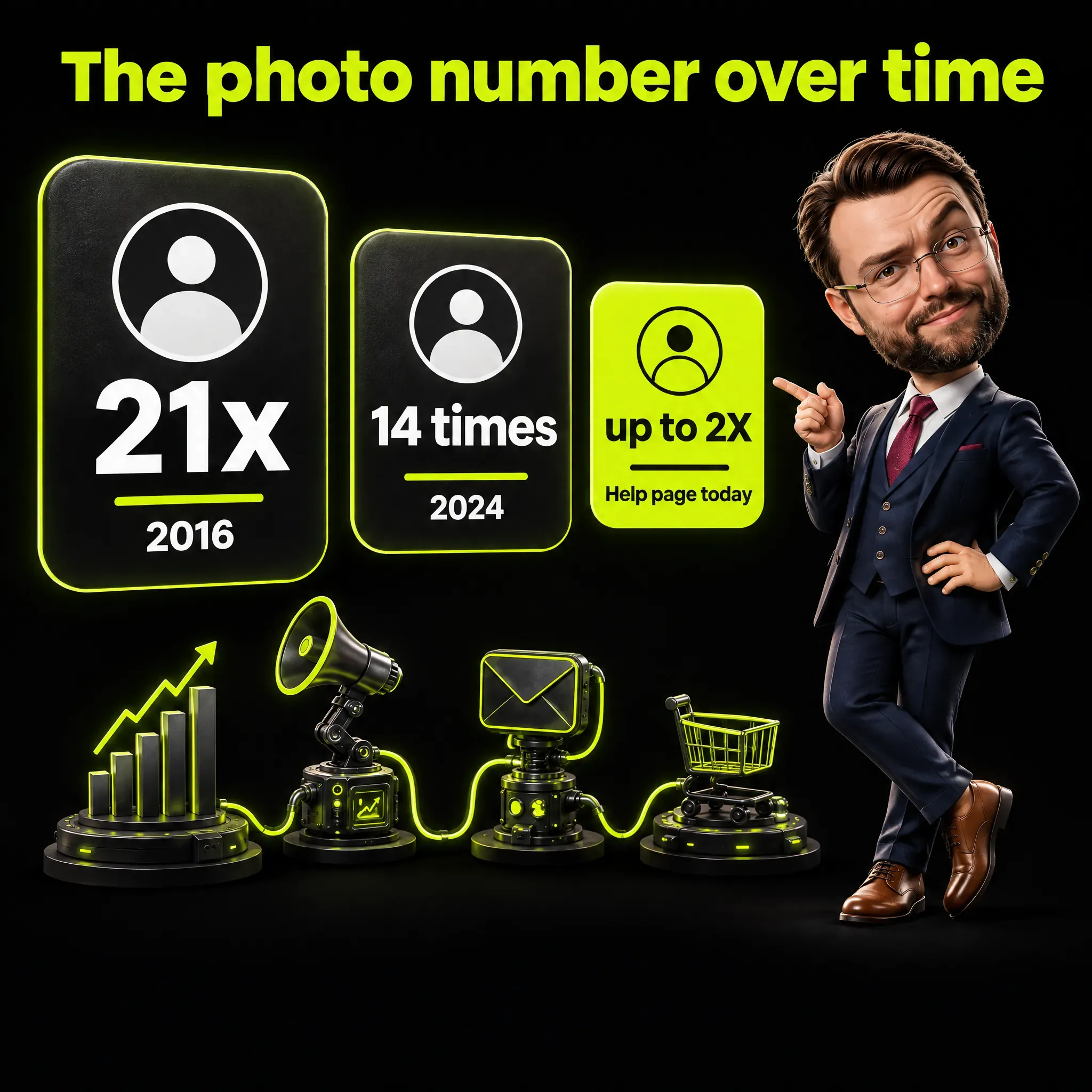
- The famous photo number is old. LinkedIn wrote 21x in 2016, 14 times in 2024, and its current help page says up to 2X.
- Repeating keywords does not move you up. LinkedIn says so in plain words and adds that a profile that looks overly optimized can lose visibility.
- Searching for yourself measures nothing. Results are different for every member, so the numbers to read are profile views and Search Appearances.
- Creator mode is gone. The switch was removed; what remains is the choice between Follow and Connect as the main button on your profile.
- Featured persuades visitors who have already arrived. Its content is not discoverable through search, so it does nothing for discovery.
What Is LinkedIn Profile Optimization?
LinkedIn profile optimization means editing your profile so that the right people find it and understand in a few seconds what you do. It has two jobs, and they need different parts of the page.
The first job is discovery. Someone types a job title or a skill into the search box, and your profile either appears or it does not.
The second job is conversion, a word from my trade that here means one thing: the visitor does something. They follow you, write to you, or open one of your posts.
The profile is one step in a longer job. In my guide to LinkedIn personal branding it comes second, after a one-sentence positioning and before posts, comments and measurement.
In What Order Should You Optimize a LinkedIn Profile?
Start with the fields that LinkedIn itself connects to search, then move to the parts a visitor reads. That order saves time, because a perfect About section is useless on a profile nobody opens.
The order is my reading of LinkedIn’s own pages. They name the fields that search uses, and they do not rank them by effect.
Stage one is short: photo, headline with a standard job title, current position, location, industry and skills. Stage two is where the writing happens: the Follow button, the first lines of About, Featured and the cover image.
Everything else comes after that. Custom URL, verification, a second language and recommendations are useful, but none of them repairs a weak first screen.
What Should You Write Down Before You Change Anything?
Write down two numbers: your profile views and your search appearances. Both sit in the Analytics section of your own profile, and without the number before, there is no number after.
LinkedIn describes the second one like this: “The Search Appearances profile feature displays statistics on how many people found you through a search on LinkedIn.” Among its filters is one called “Job titles you were found for”, and it is the most useful line on the page.
If that list shows titles you do not want, the profile is sending the wrong signal. Note the list, make your changes, and read it again after 30 days. Keep your posting rhythm the same in the meantime, or you will not know what caused the change.
Does a Profile Photo Still Matter?
Yes, but probably far less than the number you have seen quoted. The claim that a photo brings 21 times more views is almost ten years old, and LinkedIn’s later pages give much smaller figures.
In August 2016 the official blog wrote: “Members who include a profile photo receive 21x more profile views and up to 36x more messages.” In August 2024 the LinkedIn Talent Blog said a picture makes a profile 14 times more likely to be viewed.
The current help page is the most modest of the three: “Members with a profile photo on LinkedIn receive up to 2X more profile views.” None of the three explains its sample or its method, so I treat the newest and smallest figure as the one to repeat.
I apply one rule to every figure I publish: a number goes in only if the reader gets its logic without being from my trade. A 21x with no year fails that test. The 2X has no method behind it either, so I repeat it as LinkedIn’s current claim and nothing more.
What Sizes Do the Profile Photo and the Cover Image Need?
The photo must be between 400 x 400 and 7680 x 4320 pixels, and the cover is recommended at 1584 x 396 pixels. Both must be PNG or JPG, and the help page on uploads sets the limit: “Maximum file size is 8MB.”
The photo has to show you. LinkedIn’s photo rules allow a drawing: “You can use an illustration, caricature, or other artistic rendering of yourself, but your profile photo must reflect your likeness.”
LinkedIn may remove a photo that breaks its rules, and a company logo or a landscape in that circle does not show you. For the cover, the cover image page gives one piece of advice that most branded banners ignore: “Photos will also look better than images with logos.”
It also warns that the picture is cropped differently on each screen. Keep any text on the cover short and away from the edges, and check it on your phone.
What Should the LinkedIn Headline Say?
The headline should say your job in words people search for, plus the one thing that sets you apart. It is the line under your name, and LinkedIn’s headline page confirms where else it appears: “It’s displayed in search results and can be separate from the title of your current position.”
That makes it the only sentence a stranger reads before deciding to click. I wrote a separate guide with LinkedIn headline examples and the formulas behind them, so here I keep to the principle.
One detail about length: the help page gives no character limit, and LinkedIn’s Talent Blog speaks of 220 characters. Trust the counter in the field when you type.
Should You Use Your Real Job Title or a Creative One?
Use the standard title first, then add what makes you different. LinkedIn’s page on the order of profile search results is blunt about it: “Standard job titles may be boring, but they are what other members search for.”
A software engineer described on Hacker News, a forum for people who work in tech, what one changed title did. Recruiter messages had died out over the previous three years, and then: “Recently I updated my profile to state I’m a staff engineer and suddenly I’m getting messages like nothing ever happened.”
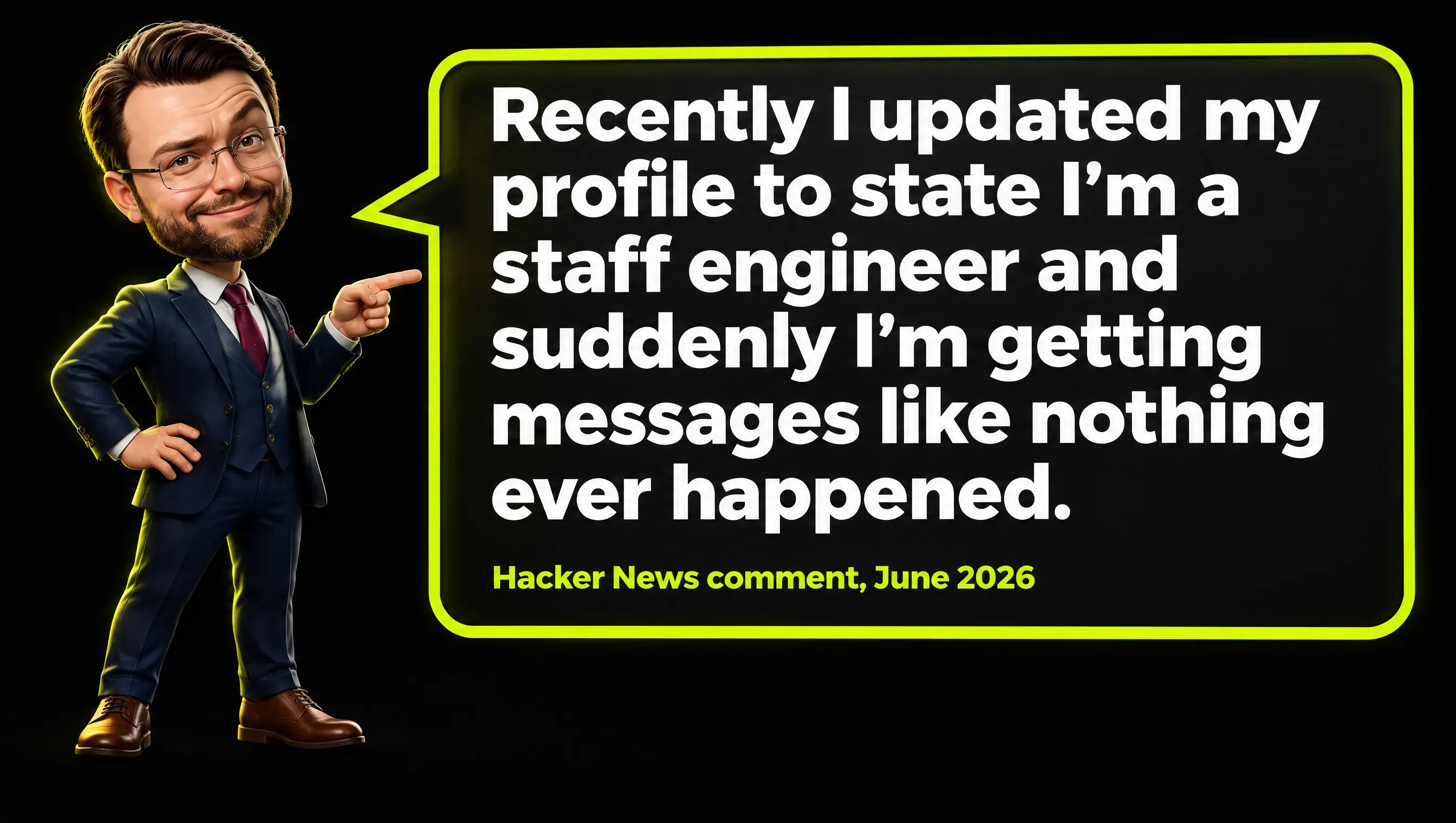
Real comment from Hacker News, June 2026.
Both titles are standard, and what changed was the level. With the senior title, they wrote, it was “Maybe one recruiter every 3 months.”
It is one person in one sector. Still, it fits the official advice: recruiters search for titles, so the exact title on your profile decides which searches you enter.
My own case shows the price of the other choice. I present myself as a Marketing Engineer. Marketing Engineer is not a standard job title, so the word people search for, marketing, has to stay in it, and the terms people do type come right after it.
The risk of that title is that too much technical detail makes people file me under engineers, and I have corrected drafts about me for that reason. Take a term people know, then add the precision that separates you from everyone else with the same term.
Do More Keywords Move You Up in LinkedIn Search?
Not on their own. LinkedIn’s page on people search relevance states it directly: “Adding more keywords to your profile doesn’t automatically improve your appearance in search results.”
The same page goes further: “If a profile appears overly optimized, it may be impacted by spam detection systems, which can negatively affect visibility in search results.” So the habit of repeating one phrase ten times can work against you.
The list of practices to avoid names three. Do not repeat the same words, do not put titles or keywords in the name field, and do not turn the profile into an advertisement.
There is a contradiction inside LinkedIn here, and I prefer to show it. In 2024 the Talent Blog suggested listing specialties at the end of the summary to fit keywords in, while the help center warns against excess.
My reading is to use each important term once or twice, in a natural sentence. Write the profile for the person who lands on it, and let the terms appear where they belong.

Why Can’t You Check Your Own Position in LinkedIn Search?
Because there is no single position. LinkedIn says its algorithms produce an order that is “unique to each member”, based on the query and on who is searching.
LinkedIn’s page on the order of profile search results gives an example: “it’s possible that a profile will appear on the 2nd page for one member and on the 5th for another, even if they are searching for the exact same keywords”. Your network changes the result too, since closer connections make an appearance more likely.
So typing your own job title into the search box shows how the list looks for you alone. The useful readings are profile views and Search Appearances.
Which Skills Should You List, and How Many?
List the skills a client or recruiter would type, and attach them to the roles where you used them. The skill endorsements page sets the ceiling: “You can add a maximum of 100 skills to your profile.”
A hundred is the ceiling, and few profiles need it. A simple test: keep a skill only if you can name the role where you used it.
LinkedIn’s search advice explains why the section counts: “Skills are among the most common queries performed by recruiters and hiring managers.”
The effect numbers follow the same pattern as the photo. In 2016 the blog promised up to 17x more profile views with five or more skills, and in 2024 the Talent Blog wrote “up to 2x more profile views and connection requests” for at least one skill.
One trap for people who work in two languages: a skill cannot be translated. You have to delete it and add it again, and LinkedIn warns that this removes its endorsements for good.
Does the All-Star Profile Level Matter?
It matters as a minimum. The level is a private meter, and the help page says “Your profile level is only visible to you.”
All-star means seven sections are filled in: profile photo, location, industry, education, position, skills and summary. LinkedIn says completing them helps “improve the discoverability of your profile in search results”.
You will read that All-star profiles get 40 times more opportunities. That figure is on none of the LinkedIn pages I read for this guide, so I leave it out.
How Do You Turn a Profile Visit into a Follow?
Give the visitor an answer at each step down the page. A stranger decides in a few seconds, and each block of the profile answers one question in their head.
The photo, name and headline answer who this is. The button answers what they can do now without commitment, the first lines of About answer why they should read you, and Featured shows one example.
The last block is Activity, which shows whether you post at all. LinkedIn’s Featured FAQ notes that “the Activity section highlights all your activity for the past 45 days”, so a silent profile shows an empty shelf.
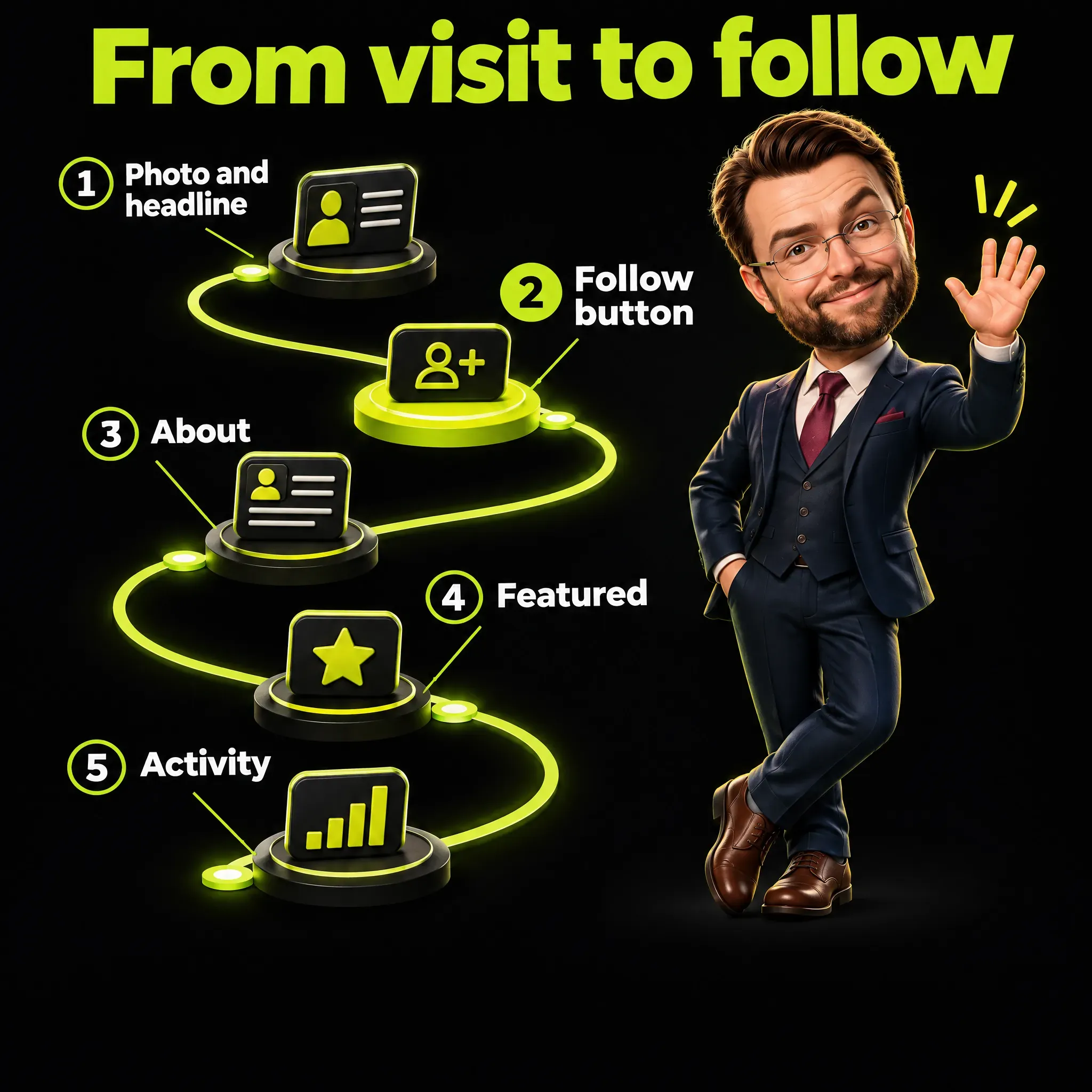
This is the stage where a profile stops being a résumé and becomes a small landing page, a page built to lead the visitor to one action. If you publish, the follow is the goal, and what happens after it I cover in the guide to LinkedIn impressions.
How Do You Show Follow Instead of Connect on Your Profile?
You switch it on in the settings: Me, Settings & Privacy, Visibility, Visibility of your LinkedIn activity, Followers. There you find a section called “Make follow primary” with a toggle.
The followers page adds a note on timing: “Changes can take up to 24 hours to take effect.” Connect does not disappear, it moves into the More menu.
Follow asks less from both sides. LinkedIn’s page on Follow and Connect explains it: “Following someone lets you see their public posts and articles in your feed without sending a connection invitation.”
The visitor needs one tap, and you have no invitation to accept. LinkedIn’s help pages give no figure for how many extra followers the setting brings, so treat it as a convenience for the visitor.
The setting makes sense only if you publish. On a profile with no posts a follower receives nothing, so there Connect is the more useful first step.
Is Creator Mode Still Worth Switching On?
You cannot switch it on, because the switch no longer exists. LinkedIn’s creator mode update says: “we are removing the creator mode on/off toggle in the Resources section of your profile”.
Profile hashtags went the same way, starting in February 2024. Any guide that tells you to activate creator mode or add five hashtags under your name is describing a product that changed.
What stayed is the useful part. You choose Follow or Connect as the main action, and the same page promises: “You will still have access to the same sharing tools and analytics.”
What Should the First Lines of Your LinkedIn About Say?
The first sentence should say what you do and for whom, in words an outsider understands. The Talent Blog (2024) gives the maximum as 2,600 characters, and the help page advises “one or two paragraphs”.
Those two figures do not conflict. The space is there, but a visitor sees only the opening before tapping to read more, and LinkedIn’s help pages do not say how many characters that preview shows.
Here is an invented pair to show the difference. Weak: “Passionate, results-driven professional with a proven track record in dynamic environments.”
Strong: “I help mid-size B2B companies find out which half of their marketing budget brings customers.” The second one names the work and the customer, and anybody can repeat it at dinner.
I learned the rules for this on my own drafts, prepared with AI help. Many of them came out too technical, so now I allow one technical term per text and I explain every abbreviation.
I also sent back the shortest ones, because they said too little. Length is not the test for About either: each sentence has to give the reader something, and the positioning behind it comes first, as in my brand positioning framework.
What Goes into the Featured Section?
Put two or three pieces there, with the best one first: a post, an article, a link to your site. LinkedIn’s Featured FAQ lists what is allowed: “you can feature posts that you’ve authored, articles you’ve published on LinkedIn, and even external media like images, documents and links”.
Know what the section does not do. The same page says: “The content included in your Featured section will not be discoverable through search.”
So Featured belongs to stage two. It persuades people who are already on the profile, and it is the one free place where an external link sits high on the page with a picture.
An empty section is hidden, so nothing looks broken if you skip it today. If you have a document post worth keeping, such as a LinkedIn carousel, this is the shelf for it.
Can You Add a Website Link Under Your Name?
Only some paying members can. The custom button page says: “This feature is available only to a select group of LinkedIn Premium Business, Sales Navigator, and Recruiter Lite subscribers.”
The free link that came with creator mode was removed. For everyone else, the website goes into Contact info and into Featured.
If you sell a service, look at Service Pages before paying for anything. LinkedIn describes them as “free dedicated landing pages that showcase your services and businesses”, and any member can message you through them for free.
A complete profile is the first of the four habits of LinkedIn social selling in LinkedIn’s own guide. There I cover the other three, and why I track replies and meetings rather than a score.
Is LinkedIn Verification Worth Five Minutes?
Yes, because it costs nothing and carries the most recent effect figure on LinkedIn’s help pages. The verification page says: “Verified members see 60% more profile views on average.”
Read that sentence with care. LinkedIn reports an average it observed, with no sample and no method, and people who verify may already be the more active ones.
It sits near the end of my list because it changes nothing in how the profile reads or in which searches it enters.
Verification is optional and, in LinkedIn’s words, “available with no additional cost”. In many countries it works through a passport with a chip, and the page lists the provider for each region.
What About the Custom URL, a Second Language, and Google?
All three are small jobs for the end of the session. The public profile URL page gives the limits: “Your custom URL can be 3-100 characters long and should not contain spaces, symbols, special characters, or the word LinkedIn.”
You can change it up to five times in six months, so choose your name and stop. A second language profile is worth the work only if you do business in that language.
LinkedIn’s language page is clear about the effort: “Translations aren’t done for you.” It also works only on desktop, and later edits to your main profile are not copied over.
Do not expect Google to follow your changes quickly. The public profile page warns that “it can take several weeks or months at times” for search engines to refresh, and LinkedIn does not control that.
How Do You Optimize a LinkedIn Profile for a Job Search?
Add Open to Work and decide who sees it. LinkedIn’s Open to Work page offers three levels: all members, recruiters only, or visible only to you.
The first level adds the green photo frame and is visible to people at your current company. The second hides it from recruiters at your employer, with a caveat in bold on the page: “we can’t guarantee complete privacy”.
Beyond that, the stage one list is the job search list. A standard title, a current position and the right skills are what a recruiter’s search reads.
Recommendations help a human reader more than the search. You can request one at a time from each connection, and the section appears only after the first one arrives.
Can AI Help You Rewrite Your LinkedIn Profile?
Yes, for drafts, as long as the facts and the final choice stay with you. An assistant is good at turning your notes into five versions of an opening line, and I describe that way of working in ChatGPT for marketing.
It is bad at knowing what is true about you. It will happily write the passionate, results-driven sentence from the weak example above, because that sentence is the average of a million profiles.
So give it your real material, ask for options, and rewrite the winner in your own words. I use the same split in all my work with AI, called human-in-the-loop verification: the machine prepares and a person verifies.
What Are the Most Common LinkedIn Profile Mistakes?
Most of these mistakes come from advice that has expired. Here are eight, each with its fix:
- Quoting or chasing old numbers, such as 21x for the photo. Use the current help pages.
- Repeating keywords in the headline, About and name field. Use each term once or twice.
- A creative title with no standard job title next to it. Put the searchable title first.
- Connect as the main button on a profile that publishes. Switch to Follow.
- An About that opens with adjectives. Open with the work and the customer.
- Outdated pieces in Featured. Replace them with two or three current ones, or empty the section so that it is hidden.
- Editing one language version and expecting the other to follow. Later edits are not copied over, so update both.
- Judging the result by searching for yourself. Read profile views and Search Appearances.
None of these needs a paid plan.
The 90-Minute LinkedIn Profile Optimization Checklist
The times are my estimates, and they exist only to put the work in order. Steps 11 to 13 depend on other people, on a second language or on a few weeks of waiting, so they sit outside the total of about an hour and a half.
| # | Step | Why it comes here | Time |
|---|---|---|---|
| 0 | Note profile views and Search Appearances | No before, no after | 5 min |
| 1 | Recognizable photo, at least 400 x 400, set to public | The effect LinkedIn still states today | 10 min |
| 2 | Headline: standard title plus what sets you apart | It is the text shown in search results | 10 min |
| 3 | Current position, location, industry | Three of the seven All-star sections | 5 min |
| 4 | Skills, attached to the roles in Experience | A common recruiter query | 10 min |
| 5 | If you publish: set Follow as the main button | One tap for the visitor | 2 min |
| 6 | About: first sentence says what you do and for whom | The first words decide | 25 min |
| 7 | Featured: two or three pieces, best one first | The free spot for a link with a picture | 10 min |
| 8 | Cover at 1584 x 396 with one readable line | It supports what the headline says | 10 min |
| 9 | Custom URL | Cleaner to share | 2 min |
| 10 | Identity verification | Free and optional | 5 min |
| 11 | Second language profile, if you work in it | Visitors see their own language | 30 min each |
| 12 | Ask one former colleague or client for a recommendation | The section appears after the first | 5 min |
| 13 | After 30 days, read the step 0 numbers again | Same numbers, same place | 5 min |
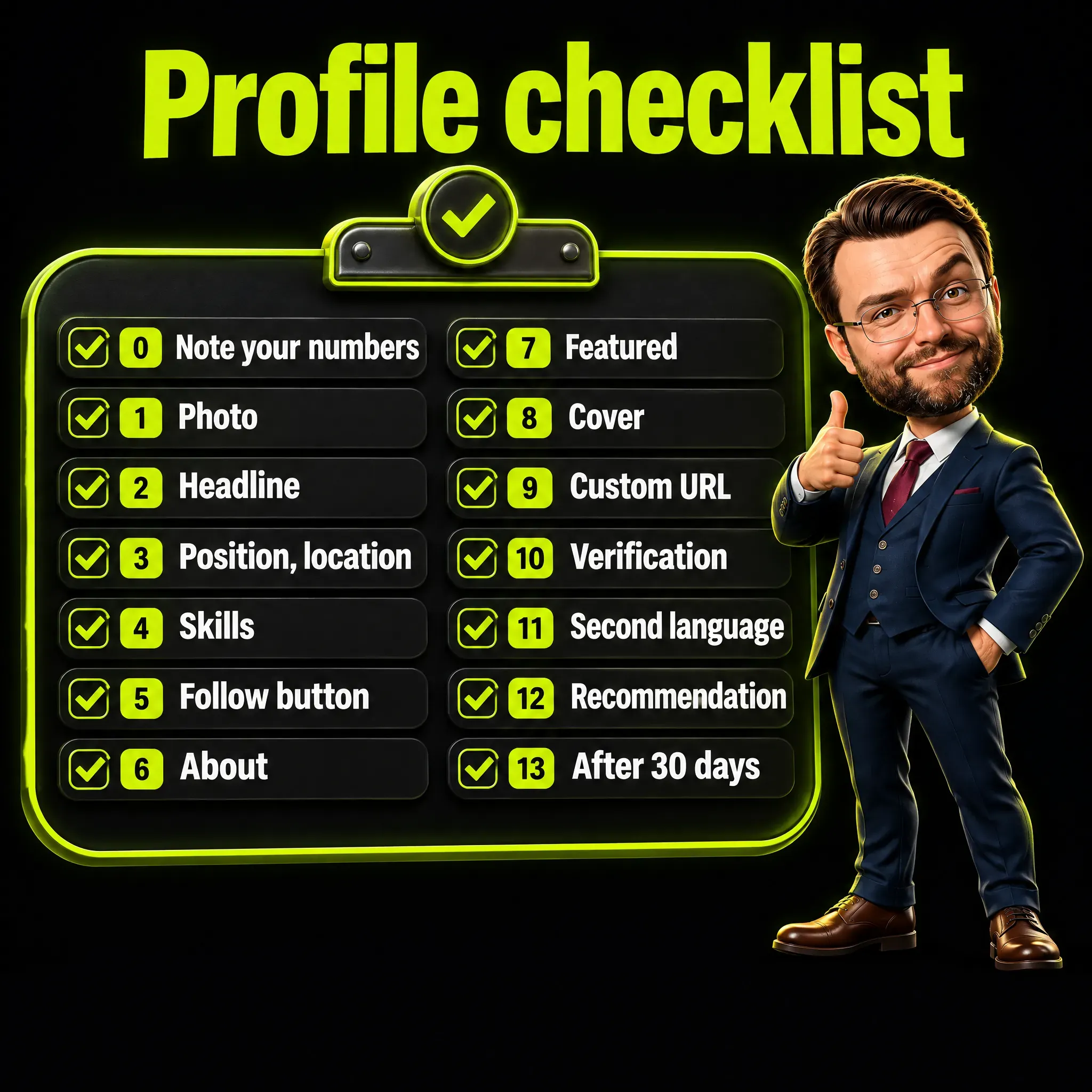
If you have only 45 minutes, do steps 0 to 5. They cover everything in stage one plus the single setting that changes what a visitor can do.
Frequently Asked Questions
What size should a LinkedIn profile photo and cover image be?
The photo must be between 400 x 400 and 7680 x 4320 pixels, and the cover is recommended at 1584 x 396 pixels. Both must be PNG or JPG files of 8 MB at most.
How long can the LinkedIn About section be?
LinkedIn’s Talent Blog gives 2,600 characters as the maximum. The help center advises one or two paragraphs, and the first words carry the most weight because visitors see them before expanding the text.
Does adding more keywords improve my position in LinkedIn search?
Not automatically, and LinkedIn says so on its help pages. A profile that looks overly optimized can be caught by spam detection and lose visibility.
How many skills can I add to my profile?
Up to 100 in the Skills section. Skills attached to roles in the Experience section do not count toward that limit.
What are red flags on a LinkedIn profile?
LinkedIn’s own rules name several: keywords or titles in the name field, a logo or landscape in place of your photo, the same phrase repeated many times, and a profile written as an advertisement. To a human visitor, an About made only of adjectives has the same effect.
Can I have my LinkedIn profile in more than one language?
Yes, from a desktop browser. You write each translation yourself, and visitors see the version that matches the language they use LinkedIn in.
How do I know whether my LinkedIn profile optimization worked?
Compare profile views and Search Appearances before and after, with 30 days between the readings. Searching for yourself does not work, because every member sees a different order.
LinkedIn Profile Optimization Comes Down to Order
LinkedIn profile optimization is a short job when you do it in order of effect. First the fields that decide whether you are found, then the button and the opening lines that decide whether a visitor follows.
Use the numbers LinkedIn publishes today, with their year. Then measure with the two readings LinkedIn gives you, because a search for your own name shows only your own view.
I write about marketing, AI and the systems I build around them. If this guide was useful, follow me on LinkedIn.